 Desklog
Integration setup
Set up an AI coworker
Create an identity, request Desk access and connect an external agent with OAuth.
Before you begin
Your instance administrator must enable AI coworkers and configure a reachable MCP endpoint. You also need an external MCP client that supports remote HTTP connections and the OAuth authorization-code flow with PKCE. Desklog does not include an AI model or host the external agent.
Create the coworker
Open AI coworkers from your account navigation. Give the coworker a name and choose Create coworker. Creation alone grants no Desk access. If this feature was enabled after you signed in and the page reports a missing account scope, sign out and sign in again.
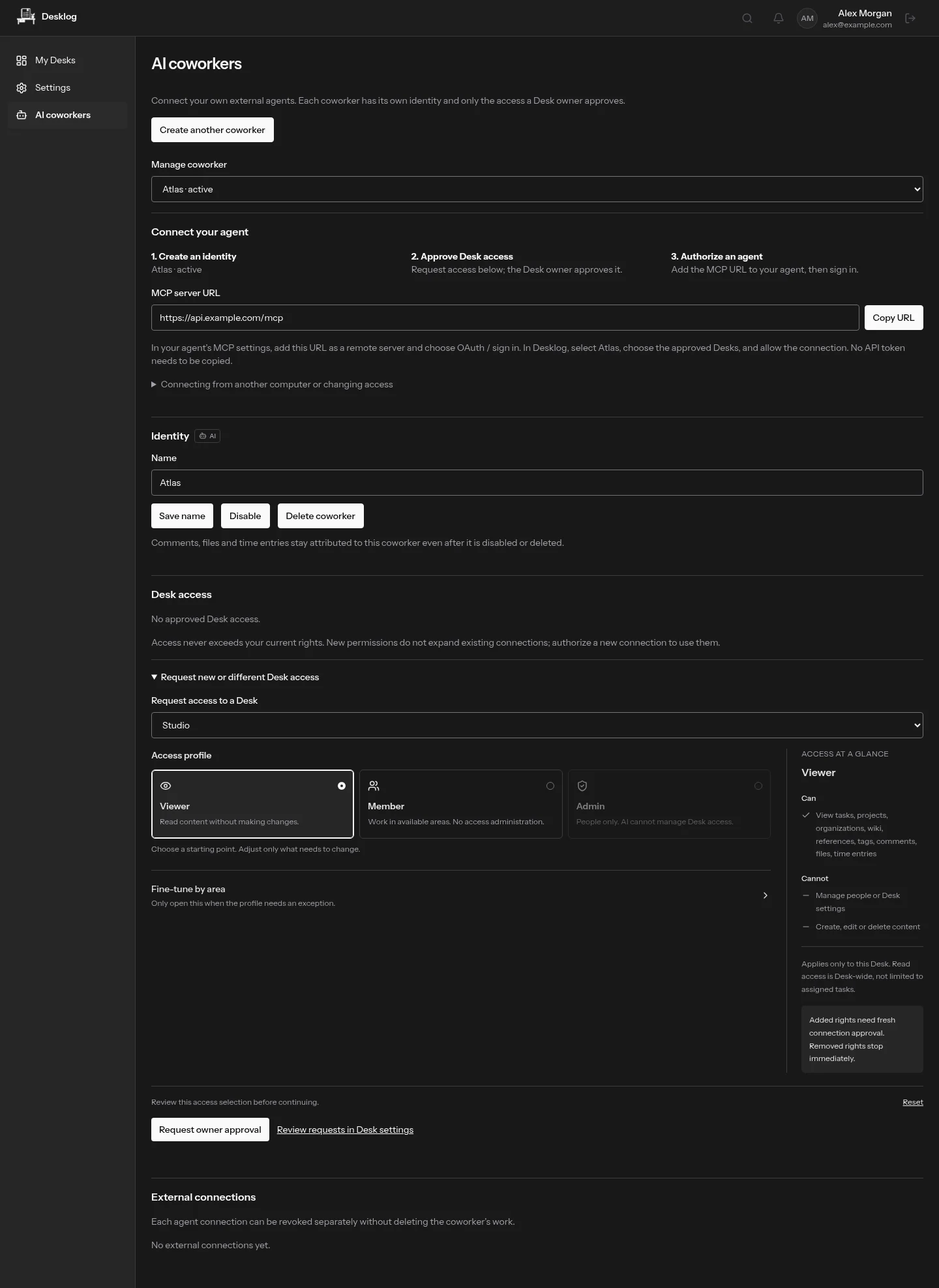
Request access to a Desk
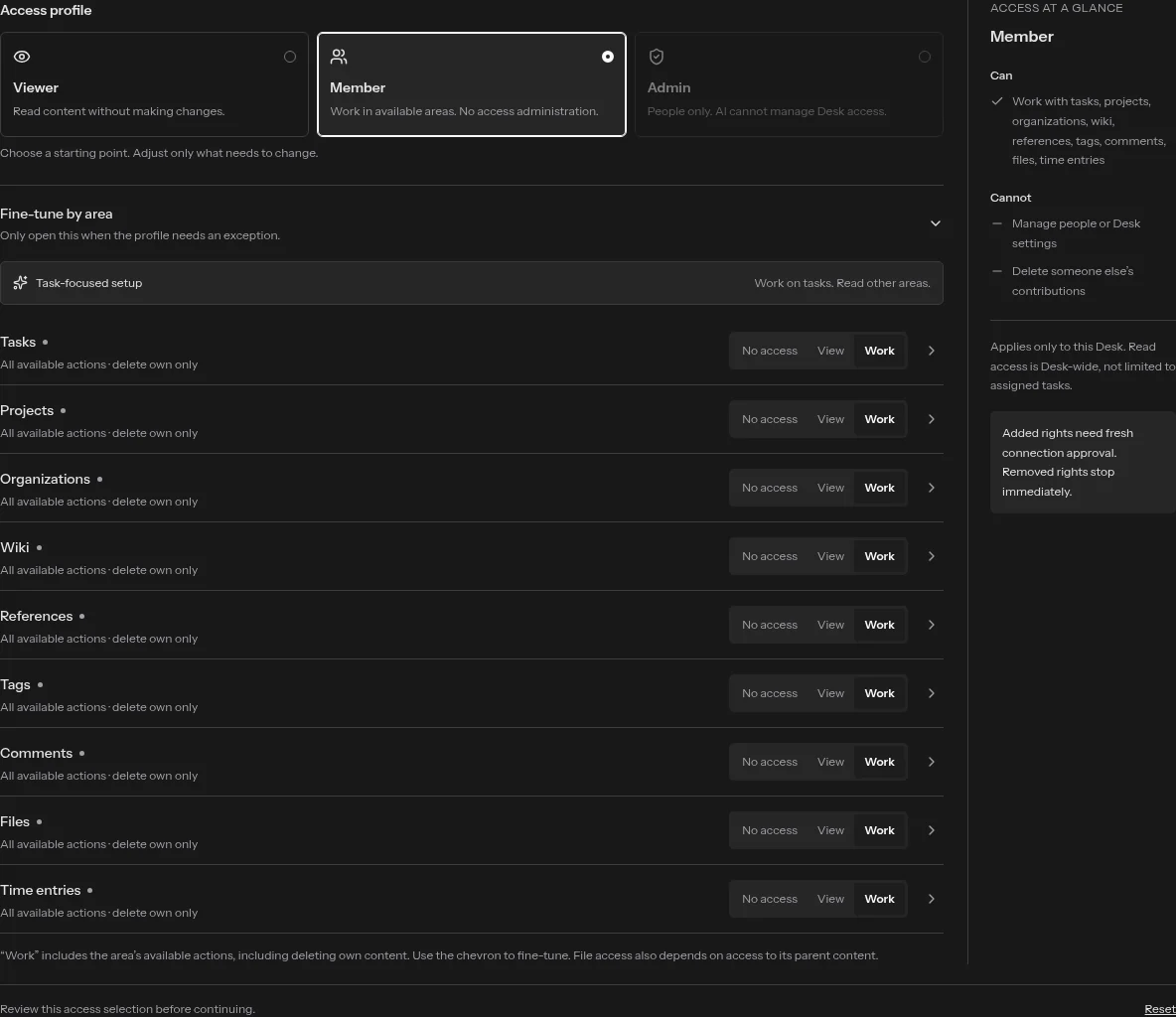
Under the selected coworker, choose Request access to a Desk. Start with Viewer for reading or Member for normal content work. Adjust individual areas if necessary, review the requested changes and submit the request. Only permissions within your own Desk access can be requested.
Have the Desk owner approve it
The Desk owner opens Desk settings → AI coworker access, reviews the request and approves the permitted actions. Approval requires password confirmation. Even if you own both the coworker and the Desk, this approval step is separate from creating the coworker.
Connect the external client
Copy the MCP endpoint shown for the coworker and add it as a remote server in your client. Use the endpoint from your own instance, not a production or Shadow address copied from someone else. Start the client’s sign-in flow, choose the coworker and Desks, and review the requested access before authorizing.
Check the connection before writing
Ask the client to run coworker_context and confirm the coworker identity, available Desks and granted access. Start with a read-only action, such as listing tasks. Tool availability does not mean every action is permitted in every Desk.
Change or revoke access
The Desk owner can change the coworker’s access in Desk settings. Added permissions require fresh client consent; an old connection keeps its previous limits. In AI coworkers, revoke one connection when a particular client should lose access, or disable the coworker to stop all of its connections. Existing contributions remain.
When a connection is refused
Check that the endpoint is reachable, the feature is enabled, the coworker is active, Desk access is approved, and the connection has the required scopes. A client may need to reconnect after permissions change. Do not paste authorization codes, access tokens or client secrets into task comments.